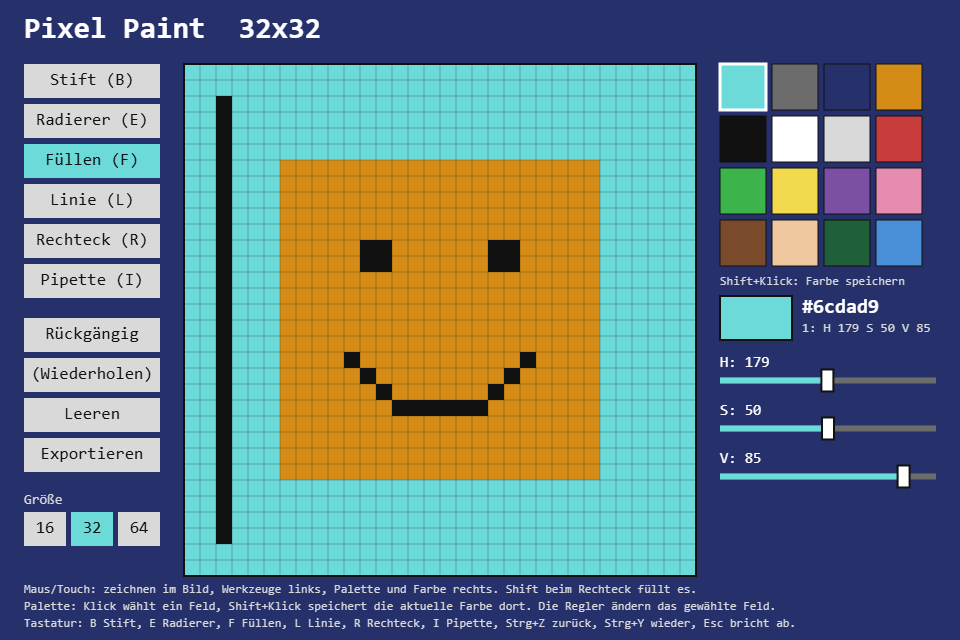
Pixel Paint is a small pixel editor: a picture of 16, 32 or 64 pixels a side, six tools, a palette of 16 colors, undo and redo, PNG export, and the picture is still there the next time. A <canvas> cannot be the editor's memory, so the new toolbox module is PixelCanvas: a buffer of palette indices with line, rectangle, flood fill and snapshots.
Play it · Source: collection-spielwerk/14-pixel-paint · Toolbox 5.6.0 or later
The game
Pick a tool and a color and paint into the picture. Line and rectangle are dragged from press to release (Shift fills the rectangle), the picker takes the color under the pointer. The H, S and V sliders change the selected palette slot, and every pixel of that slot in the picture changes with it; Shift+click on another slot stores the current color there. "Exportieren" downloads the picture as a PNG at its real size, and after every change it is saved in localStorage.
- Mouse/touch: tools, sizes, palette, sliders, "Rückgängig" (undo), "Wiederholen" (redo), "Leeren" (clear), "Exportieren" (export).
- Keyboard: B pencil, E eraser, F fill, L line, R rectangle, I picker; Ctrl+Z undo, Ctrl+Y or Ctrl+Shift+Z redo; Escape drops the stroke in progress.
New in the toolbox: PixelCanvas
The problem. A <canvas> stores colors and forgets what was drawn. An editor needs the opposite. If the H slider changes slot 4, every pixel of slot 4 must change, but the canvas only knows RGB values. And undo would copy a full RGBA screen image per step.
The idea. Keep the picture as data: for every pixel the number of a palette slot, -1 for transparent. A palette change then recolors the picture for free, a fill compares whole numbers, and an undo step is a copy of a few kilobytes. Colors appear only at the very end, when the renderer turns indices into an ImageData.
The API, trimmed:
const canvas = new PixelCanvas(32, 32);       // every pixel transparent (-1)
canvas.set(3, 4, 2);                          // pixel (3, 4) takes slot 2; outside: ignored
canvas.get(3, 4);                             // 2; outside: transparent
canvas.line(0, 0, 31, 12, 2);                 // Bresenham, both ends included
canvas.rect(4, 4, 20, 16, 5, false);          // outline; true fills
const changed = canvas.flood_fill(10, 10, 1); // pixels recolored
const before = canvas.snapshot();             // an Int16Array copy
canvas.restore(before);
const bigger = canvas.resized(64, 64);        // keeps the top-left content
const image = canvas.to_image_data(palette);  // palette: { r, g, b, a? }[]
Internally it is one Int16Array, row by row, and every primitive ignores coordinates outside it.
The line is Bresenham: integer steps only. An error term decides at each step whether the minor axis advances, so no pixel is skipped and none is drawn twice, at any slope and in either direction:
const dx = Math.abs(end_x - x);
const dy = -Math.abs(end_y - y);
let error = dx + dy;
for (;;) {
    this.set(x, y, index);
    if (x === end_x && y === end_y) {
        break;
    }
    const doubled = 2 * error;
    if (doubled >= dy) {
        error += dy;
        x += step_x;
    }
    if (doubled <= dx) {
        error += dx;
        y += step_y;
    }
}
The flood fill uses an explicit stack of pixel offsets instead of recursion. A recursive fill on a 64x64 picture can go thousands of calls deep; with a stack the depth does not matter:
const stack: number[] = [y * width + x];
while (stack.length > 0) {
    const offset = stack.pop() as number;
    if (pixels[offset] !== target) {
        continue; // already filled, or a border
    }
    pixels[offset] = index;
    changed++;
    const column = offset % width;
    if (column > 0) {
        stack.push(offset - 1);
    }
    if (column < width - 1) {
        stack.push(offset + 1);
    }
    if (offset >= width) {
        stack.push(offset - width);
    }
    if (offset + width < pixels.length) {
        stack.push(offset + width);
    }
}
The check at the top of the loop is the whole trick: a pixel may land on the stack several times but is recolored once, and then it is a wall for the fill.
How the game uses it. The DOM-free Game takes a snapshot on every press. Line and rectangle use it as a preview: on every move, restore it and draw the shape again from the start point. The release only decides whether anything changed:
// src/game/Game.ts, move_stroke() and end_stroke(), trimmed
case 'line':
    canvas.restore(stroke.before.pixels);
    canvas.line(stroke.start.x, stroke.start.y, x, y, this.color_index);
    break;
// ...
const changed = !Game.same(stroke.before.pixels, this.canvas.snapshot());
if (changed) {
    this.push_undo(stroke.before);
}
The renderer turns the indices into colors through the HsvColor palette, puts them on an offscreen canvas at the picture's own size, and draws that scaled up without smoothing:
// src/TcePixelPaintRenderer.ts
context.putImageData(canvas.to_image_data(game.palette.map((color) => color.to_rgb())), 0, 0);
The same offscreen canvas is what "Exportieren" saves, which is why the PNG has the picture's real size, not the size on screen.
The test (src/canvas/PixelCanvas.test.ts) covers the line's ends and symmetry, rectangles, the fill with its pixel count (including a 256x256 fill that must not overflow), snapshots, resizing, and the bytes of to_image_data:
const canvas = new PixelCanvas(2, 1);
canvas.set(0, 0, 1);
canvas.set(1, 0, 7);                          // not in the palette: transparent
const image = canvas.to_image_data([{ r: 0, g: 0, b: 0 }, { r: 108, g: 218, b: 217, a: 128 }]);
expect(Array.from(image.data)).toEqual([108, 218, 217, 128, 0, 0, 0, 0]);
ImageData is the only DOM object in the module, so this one test file runs under // @vitest-environment jsdom.
Path of the module: src/canvas/PixelCanvas.ts.
From earlier steps
HsvColorfrom step 09: the palette; the sliders edit hue, saturation and value,to_rgb()feedsto_image_data.
The scaffold, start screen, logo intro and scaling are explained once in Spielwerk 00: The workbench. The whole interface is toolbox UI on one canvas: Buttons on a UiPage, and the toolbox's HouseSlider (label on the left) for the three color sliders. A saved picture is checked against a zod schema when read back; a broken entry starts an empty picture. What this step first wrote by hand for Ctrl+Z shortcuts is part of the canvas game shell now; the workbench lists it under "Extracted along the way".
Embed it
<script src="https://www.game-object.de/tce-elements/tobidot/dll-tce-assets"></script>
<script src="https://www.game-object.de/tce-elements/tobidot/tce-pixel-paint"></script>
<tce-pixel-paint init-size="32"></tce-pixel-paint>
| Attribute | Values | Default |
|---|---|---|
init-size |
16, 32, 64; the side of a new picture (a saved one keeps its own) |
32 |
init-storage |
the localStorage key of the picture; two editors on one page need two keys |
tce-pixel-paint |
init-intro |
true / false; play the GO logo first |
true |
Next
Previous: Spielwerk 13: 2D-Puzzle mit Schaltern · Next: Spielwerk 15: Memory · All steps
Comments